
Lore is a new source control system from Epic Games. It is designed for fast, distributed workflows, with local repositories that work offline and optional Lore servers when you need to collaborate.
Lore for Visual Studio brings that workflow directly into the IDE. It is also a practical example of what it takes to add a new source-control provider to Visual Studio: integrate onboarding, status, changes, commits, history, branches, authentication, and native diff and merge experiences into the places developers already use.
The extension lets you onboard a solution or folder, see file status in Solution Explorer, review changes, commit, manage branches, inspect history, and synchronize with a Lore server - all without dropping to a terminal.
A source-control provider that feels native
Visual Studio already provides the integration points a source-control provider needs to participate in the everyday development workflow. Lore for Visual Studio uses them to surface repository status in Solution Explorer, provide commands in solution and file context menus, and offer dedicated Changes and History tool windows. Rather than making developers learn a separate workflow, the extension makes Lore available alongside the IDE experiences they already know.
Start with a local repository
Open a solution or folder and select Add to Source Control in the Visual Studio status bar. Choose Lore, then create a local repository.
Local repositories are fully offline. You can commit, create branches, switch branches, and browse history while all content remains on your machine. When you are ready to collaborate, create or connect to a Lore server and push your work.
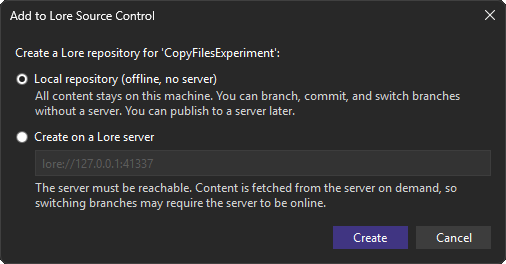
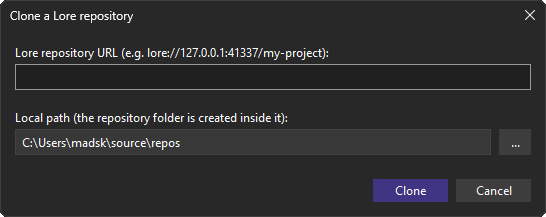
You can also clone an existing Lore repository directly from Solution Explorer. The extension checks that the server is reachable, clones the working tree, and records the remote configuration so push and pull are ready immediately.
Source-control status where you expect it
Once a solution is under Lore source control, status glyphs appear beside files in Solution Explorer. They refresh automatically as documents are saved, and the Lore Changes window provides a manual refresh command whenever you need one.
File context menus include the essentials:
- Undo Changes to restore the committed version
- Compare with Unmodified to view a native Visual Studio diff
- Ignore and Untrack Item to add a file to
.loreignore
Moves and renames performed in Solution Explorer are tracked automatically. The extension also uses Visual Studio's shared file-change service to detect changes made outside the IDE.
Review and commit changes
The Lore Changes window provides a dedicated commit experience modeled after Visual Studio's Git Changes window.
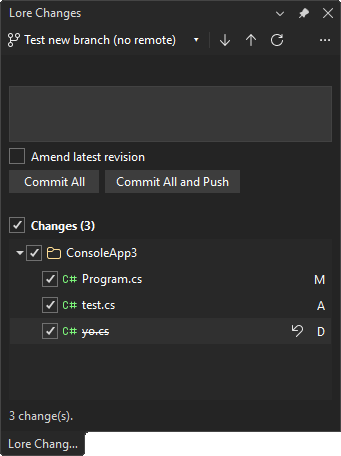
It presents changed files in a repository-root folder tree, including status badges for modified, added, deleted, renamed, and copied files.
You can select exactly which files belong in the next commit. Folder checkboxes are tri-state, the header checkbox selects everything at once, and your selection survives automatic refreshes while you write a commit message.
From the window, you can:
- Commit selected files or commit and push in one operation
- Amend the latest revision
- Open native Visual Studio diffs for individual files
- Discard a file's changes
- Pull, push, and refresh from the toolbar
Browse history without touching the working tree
The Lore History tool window shows a read-only log for the repository associated with the open solution or folder.
History is paged, newest first, so even repositories with thousands of revisions remain responsive. Each revision shows its message, short hash, author, and local commit time. Select a revision to load only the files that it changed, then double-click a file to compare it with its direct parent in Visual Studio's native diff viewer.
The window stays in sync with the workspace and refreshes automatically after relevant Lore operations, such as commits, pulls, branch changes, and merges.
Branching and merging
The branch picker in the Lore Changes window lets you switch branches, create a branch from the current revision, and merge another branch into the one you are working on.
Lore is offline-first. When the needed content is already cached locally, switching and merging do not require a network round trip. If content has been evicted from the local cache, Lore fetches it from the configured server and clearly reports when the server is unavailable.
When a merge conflicts, Visual Studio's built-in three-way merge experience opens for each conflicted file. Resolve the conflicts, accept the results, and Lore completes the merge commit.
Sign in only when it matters
There is no separate sign-in command. If a server-backed operation such as cloning, pushing, or pulling requires authentication, Lore asks whether to sign in and opens the default browser. After sign-in completes, the original operation is retried.
That keeps the experience simple: work locally when you can, authenticate only when a server operation actually needs it.
Try it out
Lore for Visual Studio is available from the Visual Studio Marketplace.
The extension is open source, and contributions are welcome on GitHub. If you are building a source-control integration of your own, the project is also an example of how a provider can fit into Visual Studio's existing source-control workflow.
Comments
nice one
Game dev workflows desperately need better version control options, especially for handling massive binary assets without the usual Git LFS headaches. Seamless offline branching inside Visual Studio is a huge win, especially for artists and devs juggling texture tweaks or running previews through an AI image enhancer before committing visual assets. If the diff and merge UX actually stays responsive on huge project histories, Epic might really have something solid here. https://videotoframes.com/ai-image-upscaler