
When several Visual Studio instances are open, identifying the right one becomes a surprisingly repetitive task. Two windows showing different checkouts of the same solution can look almost identical. Reading the title works, but a small visual cue is easier to spot.
That's the problem behind Solution Colors. Inspired by the Peacock extension for VS Code and a Visual Studio feature request, it associates a color with a solution or folder without replacing your editor theme.
Give each solution a visual identity
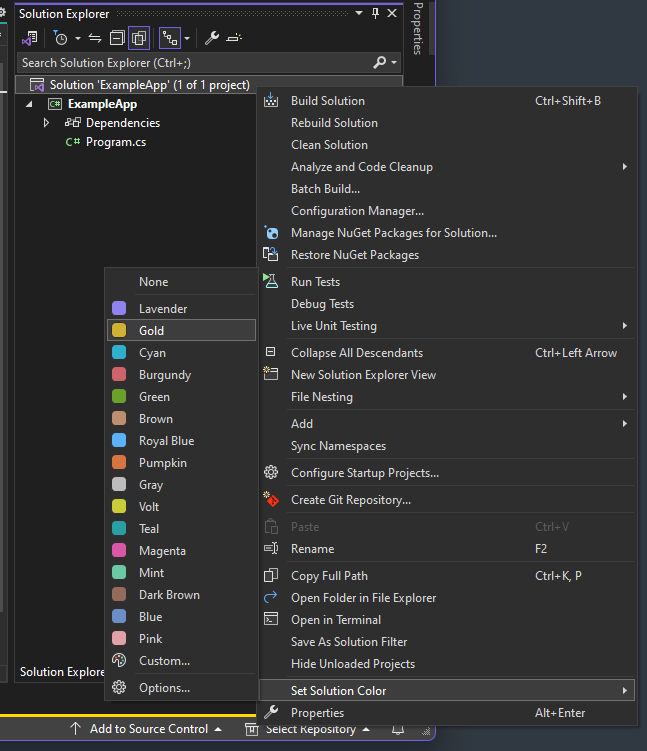
Right-click the solution in Solution Explorer, choose Set Solution Color, and select a color. The predefined choices use the familiar document-tab color palette, and Custom... opens a color picker when you want something different. Open Folder workspaces are supported too.
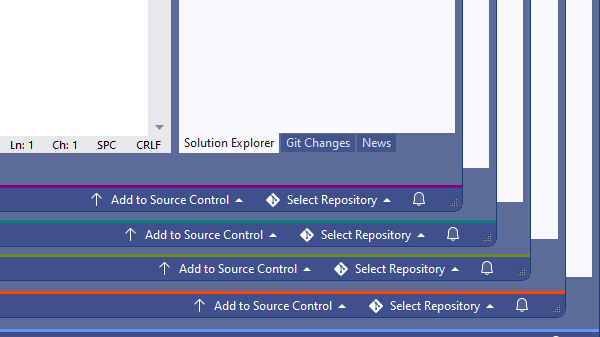
The color can appear around the window, behind the solution name in the title bar, and in taskbar thumbnails. Taskbar icon overlays are also available, with the documented limitation that taskbar items need to be ungrouped. You can choose the surfaces that help you and leave the others alone.
Under Tools > Options > Environment > Fonts and Colors > Solution Colors, you can adjust border placement and thickness or enable automatic color assignment. Automatic mode selects from the palette using a hash of the solution path; explicitly saved colors take precedence.
A small extension with two kinds of integration
The project is an in-process VSIX built with the Visual Studio SDK and the Community Toolkit. Its ToolkitPackage registers commands and listens for solution and folder open/close events. The menu lives in a VSCT command table, while the color commands share a generic BaseCommand<T> implementation.
That is the conventional part. Coloring the existing window chrome is less conventional.
The implementation searches the WPF visual tree for named shell elements such as BottomDockBorder and PART_SolutionNameTextBlock. It changes brushes and border thickness rather than introducing a new tool window. For the title label, it also uses reflection to access the foreground property and Visual Studio's ColorUtilities.CompareContrastWithBlackAndWhite to choose black or white text.
This is an important tradeoff for extension authors: finding an element in the shell's visual tree is not the same as having a dedicated, stable extensibility contract for it. Names and structure can change. The lookup code is worth isolating, and these integrations need testing against the Visual Studio versions you support.
Decoration must not get in the way
One revealing detail is hit testing. The extension disables hit testing on the non-top borders it colors so they don't intercept mouse input. But it deliberately leaves the top element alone: MainWindowTitleBar contains interactive UI, and disabling hit testing there would also block menu interaction.
That distinction is easy to overlook when the feature appears to be "just a border." Decorative changes still participate in layout and input routing.
Timing matters too. Package initialization does not guarantee that every shell element is ready. The startup path makes a bounded series of colorization attempts, with delays between them. UI changes switch to the main thread, while Git branch file reads are dispatched to a background task.
Taskbar integration uses a different mechanism: WPF's TaskbarItemInfo, noninteractive ThumbButtonInfo entries, and an overlay image. There is no need to reach into the taskbar's visual tree.
Branch colors are a state problem, not just a brush problem
The settings offer one color across branches, a separate color per branch, or a combined gradient. Assignments are stored as simple branch:color lines in a color.txt file, normally under the solution's .vs directory. An option puts the file in the root instead. The parser also accepts the older single-color format.
There is a compatibility detail worth knowing: the implementation uses the literal key master for its shared/base color. That is an internal convention, not automatic discovery of a repository's configured default branch.
A recent fix illustrates why separating decisions from rendering helps. In per-branch mode, a branch with an explicit color should remain colored even when no base color has been assigned. The code now expresses the removal decision in ShouldRemoveColorization, with focused unit tests covering the different modes and automatic-color behavior.
That is a useful pattern beyond this extension: put the state rules in a testable method, then let the UI code apply the result. You shouldn't need to launch an experimental Visual Studio instance just to verify whether a missing base setting overrides a branch-specific one.
Try it, or borrow the ideas
If you regularly juggle Visual Studio windows, install Solution Colors from the Marketplace and give your solutions a visual identity.
If you're building extensions, browse the source on GitHub. Start with SolutionColorsPackage for the lifecycle, ColorHelper for the shell integration, and the tests for the branch-color rules. A few pixels of color turn out to be a useful case study in extending the IDE without getting in the user's way.
Comments
Having a visual anchor like this saves so much cognitive overhead when juggling feature branches. It’s wild how much difference a tiny visual cue makes—kind of like running a low-res thumbnail through an <a href="https://videotoframes.com/ai-image-upscaler">AI image enhancer</a> to instantly get clear, sharp contrast instead of squinting to figure out what you’re looking at. The attention to hit-testing quirks in the shell UI is top-tier engineering detail, too. Definitely giving this a spin.